Countdown widgets
Countdown Widget for iPhone
Home Screen and Lock Screen
Get TimeTill
Live on the App Store · 44 localisations
Countdown widgets on your Home Screen
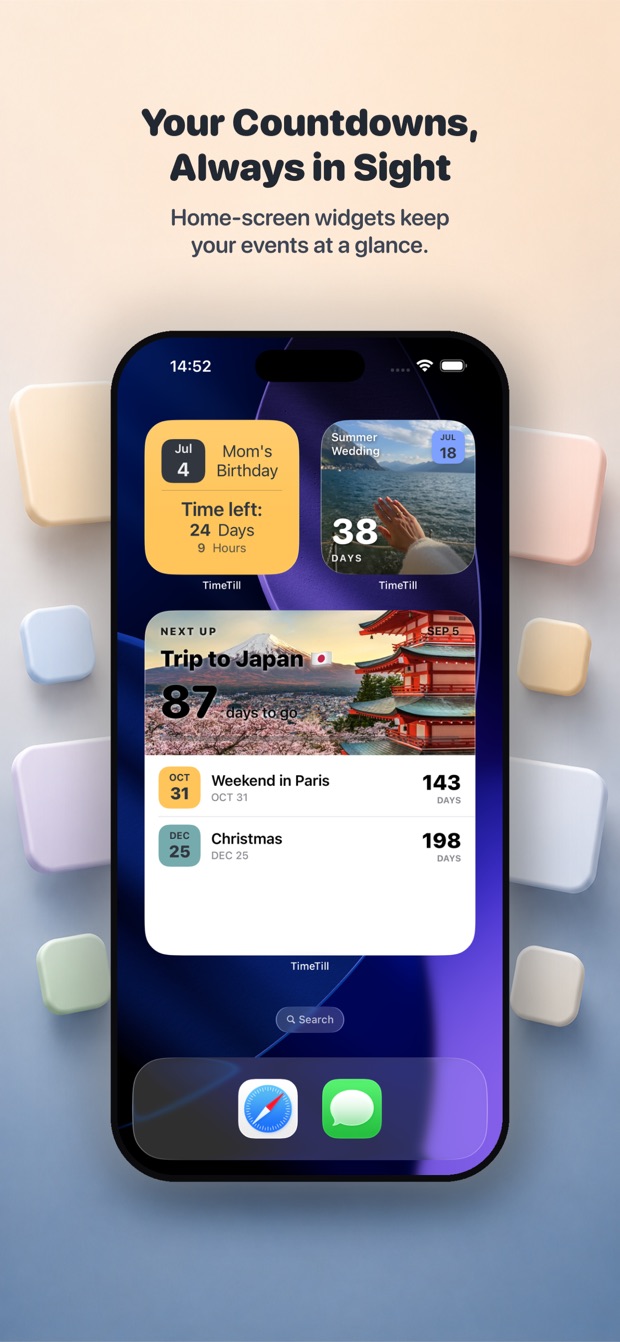
TimeTill ships a Home Screen widget in all three iOS sizes. Touch and hold an empty part of the Home Screen until the icons jiggle, tap the + in the top-left corner, search for TimeTill and pick the size you want.
- Small, medium and large. The small square slots in beside your apps; the large one gives the event room for a full cover photo.
- Touch and hold a placed widget and tap Edit Widget to choose which countdown it shows — every widget on the screen can point at a different event.
- The photo, colour theme and font you chose for an event are the ones the widget uses, so it looks like the thing it is counting to rather than a generic timer.
- The Multiple Events widget, part of the paid tier, features your next event at the top and lists the ones after it underneath.
Lock Screen countdown widgets
A Lock Screen widget is the one most people are actually looking for: the number is there on the raise-to-wake glance, with nothing to open. Touch and hold the Lock Screen, tap Customise, and TimeTill offers all three shapes iOS allows.
- Inline, on the line above the clock — one short strip of text, legible at a glance.
- Circular, for the small round slots under the clock.
- Rectangular, for the wide slot, with room for the event name alongside the time remaining.
- Each slot is configured on its own, so one Lock Screen can carry a holiday in the round slot and a deadline in the wide one.
Create as many countdowns as you want
There is no cap on how many events you track, and no requirement to type them all in by hand.
- Birthdays, vacations, weddings, anniversaries, exams, product launches, retirement, holidays and due dates.
- Import from Apple Calendar: TimeTill reads your calendars and your dated reminders, shows you what it found, and turns the ones you pick into countdowns.
- Group events into your own categories, so Personal, Travel and Wedding stay apart from each other.
Countdown, or count up
Every timer has a Countdown mode and a Duration mode. Countdown runs to a date in the future. Duration runs from one in the past, so the widget tracks how long it has been rather than how long is left — useful for a sober date, a quit date, a start date or an anniversary of something that already happened.
- Count-up timers mark the milestones as they pass: one week, one month, 1,000 hours, six months, a year, 1,000 days, and on to five years.
- Home Screen and Lock Screen widgets show either kind — the mode is a property of the event, not of the widget.
Set it once, then let it repeat
An event can repeat every week, every month, every year, or on a custom number of days. When the date passes, the countdown steps forward to the next occurrence instead of sitting at zero, so a widget you set up once keeps working.
Make the widget look like the thing it is for
A countdown to a wedding and a countdown to a tax deadline should not look the same. Personalisation is per event, and it carries through to every widget showing that event.
- A cover photo from your library. iOS hands TimeTill only the single image you pick; the rest of your library is never read.
- Colour themes and backgrounds, chosen per event.
- Over fifty fonts and themes in total, with the custom typography on the paid tier.
- A choice of which time units to display, so a distant event can read in weeks rather than a four-digit number of days.
The same countdowns on Apple Watch
TimeTill has a native Apple Watch app as well as the iPhone widgets. Your events sync across, sit on the watch face as a complication, and can remind you on your wrist.
Why use TimeTill for countdown widgets
The short version, for anyone comparing a few apps in a tab each.
- Widgets on both surfaces — three Home Screen sizes and all three Lock Screen shapes, not just one of them.
- Every widget is configurable: you choose the event it shows, not just the app.
- Per-event photos, colour themes and fonts, so several widgets on one screen still read as different things.
- Countdown and count-up in the same app.
- Repeating events — weekly, monthly, yearly or a custom interval.
- Import from Apple Calendar instead of retyping dates you already have.
- A native Apple Watch app with configurable complications.
- iCloud sync between your own devices, and no account needed to use it.
- Free to download, with a subscription for the extras. No ads.
- Localised for 44 App Store markets.
Frequently asked questions
Can I put a countdown on my iPhone Home Screen?
Yes. Touch and hold an empty area of the Home Screen until the icons jiggle, tap the + in the top-left corner, search for TimeTill, swipe between the small, medium and large sizes and tap Add Widget. Touch and hold the placed widget and tap Edit Widget to choose which countdown it shows.
Can I add a countdown to the iPhone Lock Screen?
Yes. TimeTill supports all three Lock Screen widget shapes iOS offers: the inline strip above the clock, the small circular slot and the wide rectangular slot. Touch and hold the Lock Screen, tap Customise, tap a slot and pick TimeTill.
Can I create more than one countdown?
Yes — there is no limit on the number of events, and each widget can be pointed at a different one. You can also group events into your own categories, and import existing dates straight from Apple Calendar.
Can I customise the countdown widget?
Yes. Each event carries its own cover photo, colour theme and font, and the widget renders with them. Over fifty fonts and themes are available in total, with the custom typography on the paid tier.
Does TimeTill work on Apple Watch?
Yes. There is a native Apple Watch app with configurable watch-face complications and reminders on your wrist. See the Apple Watch countdown page for what it does.
Do I need an account to use TimeTill?
No. TimeTill has no sign-up and no login. Optional sync between your own devices runs through your own iCloud account using CloudKit, so your events go into your private iCloud database rather than to a server of mine.
Why is my countdown widget not updating?
iOS refreshes widgets on its own schedule rather than on demand, so a countdown can lag by a few minutes. If it is stuck for longer, remove the widget and add it again, which forces a fresh timeline, and check that Background App Refresh is on in Settings → General → Background App Refresh. The support page has the longer version.
Is the countdown widget free?
Yes. TimeTill is free to download and the widgets work on the free tier. A subscription unlocks the extras — unlimited colour schemes, all the custom typography, the Multiple Events widget and cross-device sync.
Get TimeTill
Live on the App Store · 44 localisations