Countdown widgets
Countdowns on Apple Watch
Complications on the watch face
Get TimeTill
Live on the App Store · 44 localisations
See your countdowns on your wrist
The watch app opens on a list of your upcoming events with the time left beside each one. Tap one for a detail view with the remaining time broken out in full. It reads from a copy held on the watch, so the list is there whether or not the phone is to hand.
- Every countdown from your iPhone, in the same order of urgency.
- Cover photos travel across too, as compact thumbnails, so an event on the watch looks like the same event on the phone.
- A settings screen on the watch itself, reached from the gear in the list.
Apple Watch complications
TimeTill provides a watch-face complication in four of the shapes watchOS offers, and it is configurable rather than fixed: touch and hold the face, tap Edit, choose the TimeTill complication and then set which event it shows and which unit it counts in.
- Four families: circular, corner, rectangular and inline.
- Pick a specific event, or leave it on automatic and the complication follows whichever countdown is next.
- Pick the unit: automatic, days, weeks or hours. A distant event can read in weeks instead of a four-digit day count, and the last day can read in hours.
- It appears in the Smart Stack as well as on the face.
- On a tinted watch face, watchOS strips images from complications — the rectangular one shows its photo only on a full-colour face. That is watchOS behaviour, not a TimeTill setting.
Countdown reminders on your wrist
The watch schedules its own notifications rather than relaying the phone’s, so they arrive on the wrist even when the phone is in another room.
- Two per event: one the day before, one on the day itself.
- All-day events fire at 09:00 local time.
- The thirty soonest upcoming countdowns are scheduled at any one time, which keeps the app inside the limit watchOS places on pending notifications.
- On by default, and switchable off in the watch app’s own settings.
Synced with your iPhone
The iPhone is where you create and edit events; the watch is where you read them. TimeTill pushes changes across whenever you add, edit or delete a countdown, and the watch keeps its own cached copy between updates.
- Events, dates and titles sync automatically whenever the phone app changes them.
- The time units you choose on iPhone are the ones the watch and its complications use, so the two never disagree about whether an event is 3 weeks or 21 days away.
- Cover photos are sent across as small thumbnails and cached on the watch, so the list is not waiting on a transfer to draw.
Useful Apple Watch countdown ideas
A complication is a small amount of screen you look at a hundred times a day, so it is worth spending on something you actually want to be reminded of.
- The holiday — days until you fly.
- A birthday, set to repeat every year so you only enter it once.
- A wedding or an anniversary.
- A deadline: a submission, a filing, a launch date.
- A count-up instead: days since you started something.
iPhone widgets, too
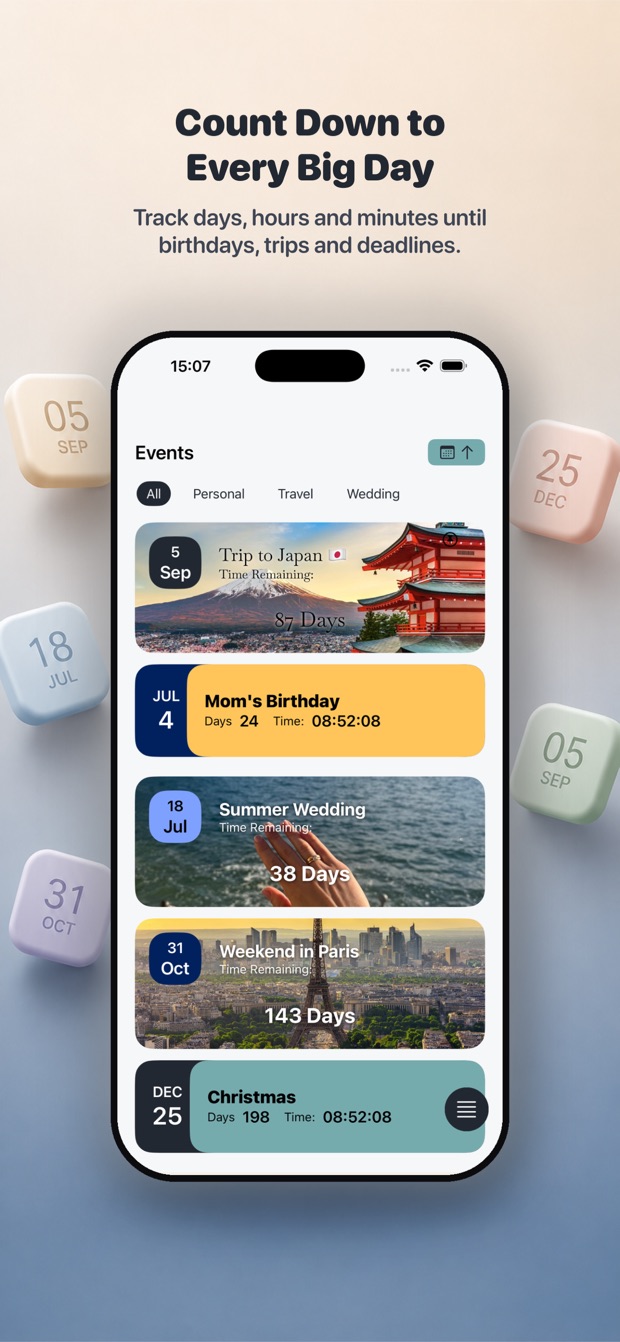
The watch complication and the phone widget are the same events seen from two places. On iPhone, TimeTill puts countdowns on both the Home Screen and the Lock Screen, in every widget size iOS offers.
Frequently asked questions
Can Apple Watch show a countdown?
Yes. TimeTill includes a native watchOS app that lists your countdowns and a watch-face complication that shows the time remaining to one of them, so the number is on the face without opening anything.
Does TimeTill have Apple Watch complications?
Yes — in four families: circular, corner, rectangular and inline. Each one is configurable: you choose which event it tracks (or leave it on automatic to follow the next one up) and whether it counts in days, weeks or hours.
Can my iPhone countdowns sync to Apple Watch?
Yes. Events created or edited on the iPhone are pushed to the watch automatically, along with their cover photos and the time units you picked, so the two devices show the same countdown the same way.
Can I get countdown reminders on Apple Watch?
Yes. The watch schedules its own reminders — one the day before an event and one on the day — for your soonest upcoming countdowns. All-day events fire at 09:00. They are on by default and can be switched off in the watch app’s settings.
Do I need my iPhone nearby for the countdown to work?
No for reading, yes for updating. The watch keeps its own copy of your events and schedules its own reminders, so the list, the complication and the alerts all work with the phone out of range. New and edited events reach the watch the next time the two devices are in contact.
Which Apple Watch models does TimeTill support?
Any Apple Watch running watchOS 10.6 or later, paired with an iPhone running iOS 17 or later.
Is the Apple Watch app a separate purchase?
No. It comes with the iPhone app, which is free to download. The subscription that unlocks the extras is the same one either way — there is nothing watch-specific to buy.
Get TimeTill
Live on the App Store · 44 localisations