Countdown widgets
Birthday Countdown for iPhone
Repeats every year
Get TimeTill
Live on the App Store · 44 localisations
Create a birthday countdown
Add an event, name it, set the date and leave it in Countdown mode. That is the whole setup. If the birthday is already in your calendar — and most are — you can skip the typing entirely: TimeTill imports events and dated reminders from Apple Calendar and turns the ones you pick into countdowns.
- Tap the plus button to create a countdown, or import from your calendar.
- Any number of birthdays, alongside everything else you are tracking.
- Put them in their own category so they are not mixed in with trips and deadlines.
Set it once, and it repeats every year
A birthday is the case repeating events were built for. Set the repeat rule to Every year and the countdown steps forward to next year’s date the moment this year’s passes, rather than stalling at zero and needing to be re-entered.
- Every year is one of four repeat rules — the others are every week, every month and a custom number of days.
- Widgets and complications follow the repeat, so they keep showing a live number without being touched.
Put the birthday countdown on your Home Screen
A Home Screen widget is what turns a birthday countdown from something you check into something you see. TimeTill offers small, medium and large widgets, and each one is pointed at a specific event — so the birthday gets its own square rather than sharing with your next deadline.
Add a birthday countdown to the Lock Screen
The Lock Screen version is the glanceable one. Touch and hold the Lock Screen, tap Customise, and put TimeTill in the inline strip above the clock or in one of the slots below it. The number is then in front of you on every raise-to-wake, which is roughly a hundred quiet reminders a day.
- Inline, circular and rectangular — all three Lock Screen shapes are supported.
- Each slot is configured separately, so the birthday can sit in the round slot while the wide one carries something else.
Get reminded before the day
A countdown on a screen is a passive reminder; a notification is the one that catches you when you have not looked. TimeTill schedules reminders ahead of an event so the day does not arrive unannounced, and if you wear an Apple Watch they arrive on your wrist as well.
- Notification permission is asked for once, and can be changed at any time in Settings → Notifications → TimeTill.
- On Apple Watch the reminders are scheduled on the watch itself — one the day before, one on the day — so they arrive with the phone in another room.
- iOS decides when a local notification is delivered, so Focus modes and Low Power Mode can delay one. Treat a countdown as a prompt, not as a critical alarm.
Customise your birthday countdown
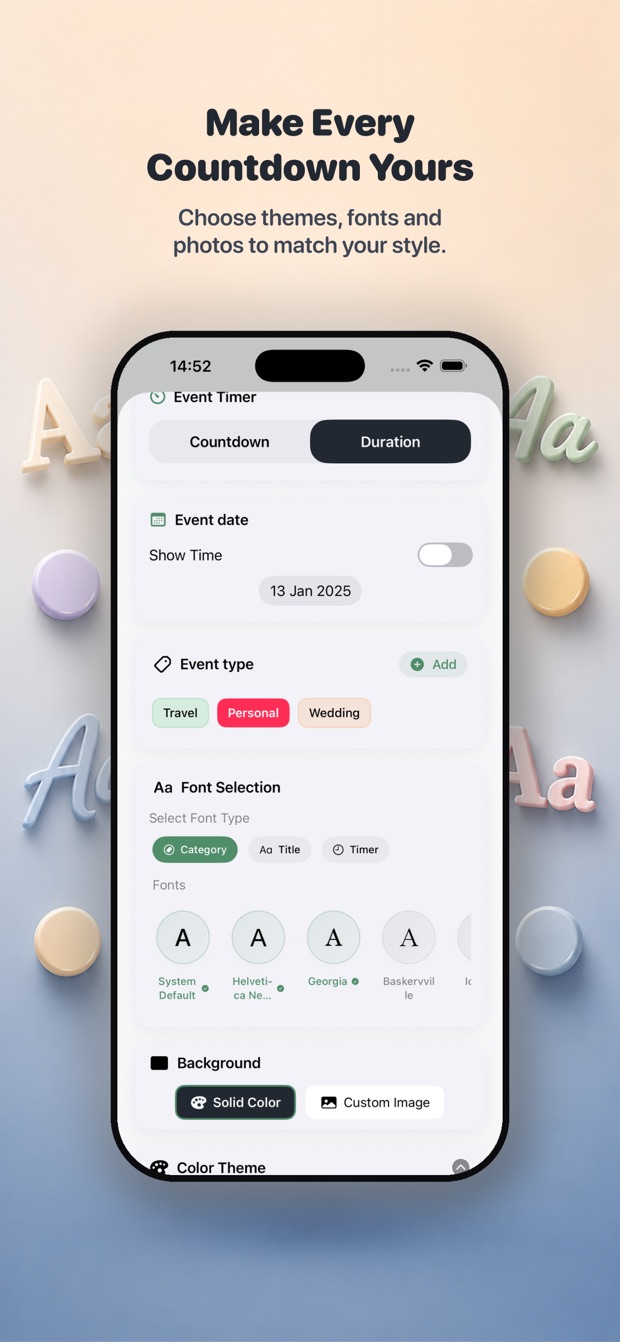
A birthday countdown works better when it looks like the person. Personalisation is per event, and everything you set here shows up in the widget as well as in the app.
- A cover photo of the birthday person, picked from your library. iOS gives TimeTill only the one image you choose.
- Colour themes and backgrounds, set per event.
- Over fifty fonts and themes in total; the custom typography is on the paid tier.
- Your choice of time units, so a birthday eleven months out can read in weeks rather than days.
Or count up instead
Switch a timer from Countdown to Duration and it counts from a past date rather than to a future one — how old someone is in days, or how long it has been since a birth, a wedding or the day you brought a dog home. Count-up timers mark milestones as they pass, from one week through 1,000 days and on to five years.
Birthday countdowns on Apple Watch
Put the birthday on your watch face as a complication and the days remaining are there every time you check the time. The complication can be pinned to that one event, or left on automatic so it always shows whatever is next.
Frequently asked questions
How do I create a birthday countdown on iPhone?
Download TimeTill, tap the plus button, name the event, set the birthday date and leave it in Countdown mode. Set the repeat rule to Every year so it carries over. If the birthday is already in your calendar, use Import from Calendar instead of typing it.
Can I put a birthday countdown on my Lock Screen?
Yes. Touch and hold the Lock Screen, tap Customise, tap a widget slot and choose TimeTill. All three Lock Screen shapes are supported — the inline strip above the clock, the circular slot and the rectangular one — and each is configured to a specific event.
Can I use a photo in my birthday countdown?
Yes. Each event takes a cover photo from your library, and the widget uses it too. iOS shows you its own picker and hands TimeTill only the single image you choose; the rest of your library is never read.
Can TimeTill remind me before a birthday?
Yes. Reminders are scheduled ahead of the event, and if you have an Apple Watch they also arrive on your wrist — one the day before and one on the day. Because iOS delivers them, a Focus mode or Low Power Mode can delay one, so do not rely on it as your only alarm for something critical.
Can birthday countdowns repeat every year?
Yes. Set the repeat rule to Every year and the countdown moves to next year’s date as soon as this year’s passes, so you enter the birthday once and the widget keeps working.
Can I see birthday countdowns on Apple Watch?
Yes. TimeTill has a native Apple Watch app and a configurable watch-face complication, so a birthday can sit on your watch face with the days remaining. See the Apple Watch countdown page.
How many birthdays can I track?
As many as you like — there is no limit on events. Group them into their own category to keep them apart from trips and deadlines, and import the ones already in Apple Calendar rather than retyping them.
Is the birthday countdown app free?
Yes. TimeTill is free to download, and creating birthday countdowns with Home Screen and Lock Screen widgets works on the free tier. A subscription adds unlimited colour schemes, all the custom typography and sync between your devices.
Get TimeTill
Live on the App Store · 44 localisations